


Convertio lets you convert images of state flags, seals, and vintage maps from one format to another right in your browser, with no software to install. That small step matters more than most people expect. A scan of your grandmother's 1940s Texas postcard might sit on your laptop as a huge TIFF file that no email will accept. Meanwhile, your kid's school report needs a light JPG, and your local historical society wants a crisp PNG for its newsletter.
We collect, share, and learn from images of state symbols every day. But the format those images come in rarely matches what you need them for. This guide covers how to fix that without losing the detail that makes old seals and flags worth keeping.
Table of Contents
- Why State Symbol Images End Up in the Wrong Format
- Picking the Right Format for the Job
- How to Convert Images With Convertio, Step by Step
- Real Projects That Call for Conversion
- Tips for Keeping Historical Images Sharp
- A Quick Word on Using Seals and Flags
Why State Symbol Images End Up in the Wrong Format
Every image has a backstory, and that story usually explains its file type.
Museums and archives tend to scan old documents as TIFF files because TIFF keeps every pixel intact. Government websites often post state seals as SVG or PDF files so they scale cleanly. Your phone, on the other hand, probably saves photos as HEIC if you use an iPhone. Social media sites shrink everything into compressed JPGs.
So when you download a high-quality image of the Alaska state flag, you might get a file your slideshow program refuses to open. Or you snap a photo of a historical marker on a road trip, and your relative's old Windows laptop can't read it.
State symbols also change. Mississippi raised a new flag in 2021. Utah and Minnesota both adopted new designs in 2024. If you're building a collection that tracks those changes, you'll gather files from many sources, and they won't all match. The flags of the U.S. states alone come in dozens of file types across the web.
Picking the Right Format for the Job
Before you convert anything, figure out where the image is headed. Here's a quick cheat sheet.
| Format | Best For | Strengths | Watch Out For |
| TIFF | Archiving scans of old maps and documents | Keeps full detail, no quality loss | Very large files |
| PNG | Flags, seals, and logos with sharp edges | Clean lines, supports transparent backgrounds | Bigger than JPG for photos |
| JPG | Photos for email, social media, and slideshows | Small file size, opens almost anywhere | Loses detail each time you re-save |
| WebP | Website images | Smaller than JPG at similar quality | Some older programs can't open it |
| SVG | Seals and flags that need to scale to any size | Never gets blurry when enlarged | Only works for drawn graphics, not photos |
| Printable handouts and multi-page documents | Easy to print and share | Harder to edit as an image | |
| HEIC | iPhone photos | Good quality at small sizes | Poor support on Windows and the web |
Rule of thumb: Keep a TIFF or PNG "master copy" of anything historical, then make JPG or WebP copies for everyday sharing. You can always shrink a big file, but you can't bring back details you already threw away.
How to Convert Images With Convertio, Step by Step
You don't need any tech skills here. The whole process takes about a minute for most files.
Step 1: Open the image converter
Head to Convertio's image converter page in any modern browser. It works on Windows, Mac, Linux, Chromebooks, and phones.
Step 2: Upload your file
Click Choose Files and pick the image from your computer. You can also pull files straight from Google Drive or Dropbox, or paste a URL.
Step 3: Pick the output format
Choose the format you want from the dropdown menu. Convertio supports more than 300 file formats overall, so you'll find common picks like JPG and PNG next to less common ones.
Step 4: Convert and download
Hit Convert. Convertio processes the file on its own servers, so your computer doesn't do the heavy lifting. Once it finishes, click Download.
Good to know: Free accounts can handle files up to 100 MB, which covers nearly all photos and most scans. If you're working with huge archival TIFFs, check the size before uploading.
Real Projects That Call for Conversion
We hear from teachers, collectors, and family historians all the time. Here are some of the most common reasons people need to change an image's format:
- Classroom lessons. Teachers turn big PNG flag files into smaller JPGs so a 50-slide presentation on all 50 states doesn't crash the school laptop.
- Family history projects. Genealogists convert scanned TIFF land deeds and county maps into PDFs to share with relatives.
- Road trip scrapbooks. Travelers switch iPhone HEIC photos of capitol buildings and state welcome signs into JPGs for printing.
- Craft and quilting patterns. Hobbyists save state bird or flower illustrations as PNGs with transparent backgrounds for embroidery software.
- Local history websites. Volunteers change heavy JPGs into WebP files so their pages load faster for visitors on phones.
- Science fair posters. Students resize and convert images of a state flower or state tree for large-format printing.
Each of these starts with the same problem: the file you have isn't the file you need.
Tips for Keeping Historical Images Sharp
Old maps and documents carry tiny details: faded handwriting, fine engraving lines on a seal, the hand-drawn borders of a territory that later became a state. You don't want to lose any of that.
Follow these habits to protect your images:
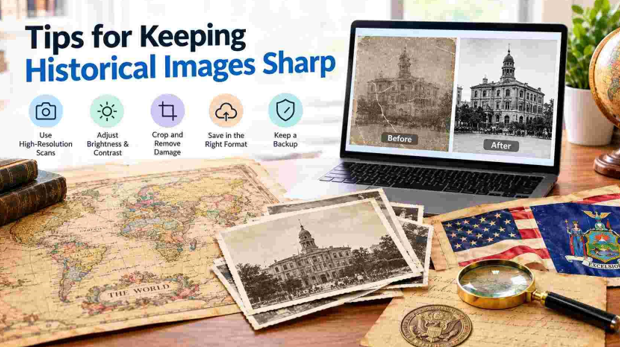
- Scan at high resolution first. Aim for at least 600 DPI for old documents. You can always make smaller copies later.
- Convert from the original, not a copy. Each time you re-save a JPG, it loses a little quality. Go back to the master file every time.
- Use PNG for anything with text or sharp lines. Seals, flags, and maps stay crisp in PNG, while JPG can add fuzzy edges around letters.
- Name your files clearly. Something like
ohio-state-seal-1803-scan.tiffbeatsIMG_4471.tiffwhen you're searching years later. - Keep backups in two places. Store one copy on an external drive and another in cloud storage.
Pro tip: If you scan a page with printed text, such as an old state legislature document, Convertio also offers OCR, which turns the words in a scanned image into editable text. That makes old records searchable.
A Quick Word on Using Seals and Flags
Changing a file's format doesn't change the rules around using it. Most state flags are free for personal and educational use. State seals are a different story.
Many states limit how people can use their official seal, especially for anything commercial. Some require written permission. Others ban using the seal in ways that suggest a government endorsement.
Here's a simple breakdown:
| Use Case | Flags | Seals |
| School reports and lessons | Usually fine | Usually fine |
| Personal scrapbooks | Usually fine | Usually fine |
| Selling T-shirts or products | Check state law | Often restricted |
| Business logos or ads | Check state law | Often prohibited |
When in doubt, look up your state's statute or contact the secretary of state's office. It only takes a few minutes and can save you real trouble.